
PHP Tutorial
- Introduction to PHP
- Install PHP
- PHP Code
- PHP Echo
- PHP Print
- PHP Echo vs Print
- PHP Variable
- PHP Variable Scope
- PHP $ and $$
- PHP Constants
- PHP Magic Constants
- PHP Data Types
- PHP Operators
- PHP Comments
- Control Statement
Control Statement
- PHP If else
- PHP Switch
- PHP For Loop
- PHP foreach loop
- PHP While Loop
- PHP Do While Loop
- PHP Break
- PHP Continue
PHP Programs
- Pattern Programs
- Numbers Programs
- String Programs
- Array Programs
PHP Functions
- PHP Functions
- Parameterized Function
- PHP Call By Value
- PHP Call By Reference
- PHP Default Arguments
- PHP Variable Arguments
- PHP Recursive Function
PHP Arrays
- PHP Array
- PHP Indexed Array
- PHP Associative Array
- Multidimensional Array
- PHP Array Functions
PHP Strings
- PHP String
- PHP String Functions
PHP Math
- PHP Math Functions
PHP Form
- PHP Form: Get Post
PHP Include
- PHP include & require
State Management
- PHP Cookie
- PHP Session
PHP File
- PHP File Handling
- PHP Open File
- PHP Read File
- PHP Write File
- PHP Append File
- PHP Delete File
How to run PHP code in XAMPP
To run PHP code in XAMPP, you’ll need to follow these steps:
1. Install XAMPP: If you haven’t already installed XAMPP, download it from the Apache Friends website (https://www.apachefriends.org/index.html) and follow the installation instructions for your operating system.

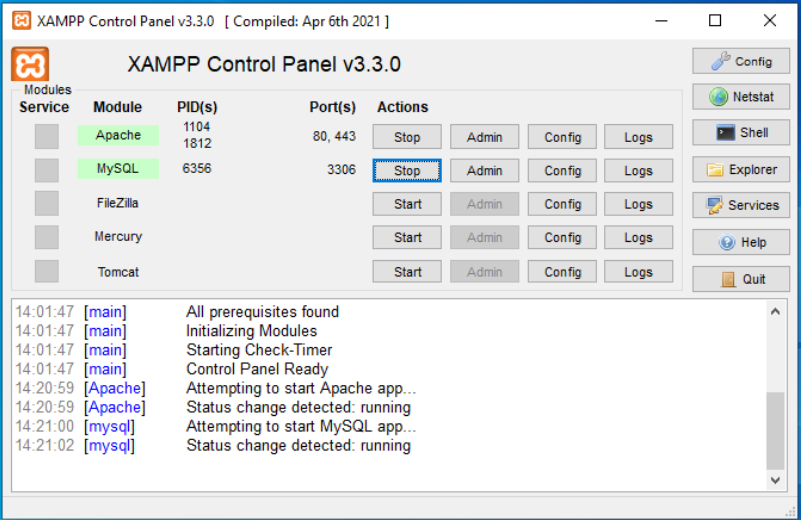
2. Start Apache and MySQL: After installing XAMPP, start the Apache server and MySQL database from the XAMPP Control Panel. You can do this by launching the XAMPP Control Panel and clicking on the “Start” buttons next to Apache and MySQL.
3. Create a PHP File: First, navigate to the htdocs folder within your XAMPP installation directory (e.g., C:\xampp\htdocs or D:\xampp\htdocs if you installed XAMPP on a different drive). Create a new folder for your project (e.g., demo) and inside this folder, create a new text file named index.php.
4. Write Your PHP Code: Open the index.php file in a text editor and write your PHP code. A simple PHP script might look like this:
					<?php
echo "Hello, World!";
?>
Note: Remember to save the file with a .php extension.
5. Access Your PHP Script: Open your web browser and type localhost/demo/index.php in the address bar (replace demo with the name of your project folder if you named it differently). Press Enter to execute the script. You should see the output of your PHP code displayed in the browser.
By following these steps, you have successfully created and executed a PHP file using XAMPP. This process allows you to develop and test PHP applications locally before deploying them to a live server.