Introduction
Desktop Publishing Software (often abbreviated as DTP software) refers to specialized tools used to design, layout, and produce professional-quality printed and digital documents. These tools enable users to combine text, images, graphics, and typography into structured layouts for materials such as magazines, books, brochures, newspapers, reports, marketing collateral, and digital publications.
In today’s content-driven world, desktop publishing software plays a crucial role in branding, communication, and information delivery. Businesses rely on it to maintain consistent visual identity, publishers use it to produce high-quality print and eBooks, and designers depend on it for precise control over layout and typography. Unlike basic word processors, DTP tools offer advanced layout grids, typographic controls, color management, and print-ready output.
When choosing desktop publishing software, users should evaluate factors such as layout flexibility, typography tools, image handling, export formats, collaboration features, performance, and platform compatibility. Security, compliance, and long-term scalability are also increasingly important for teams working with sensitive or regulated content.
Best for:
Desktop Publishing Software is ideal for graphic designers, publishers, marketing teams, print professionals, educators, and businesses that regularly produce visually rich documents. It benefits freelancers, SMBs, large enterprises, publishing houses, advertising agencies, and in-house creative teams.
Not ideal for:
These tools may be unnecessary for users who only need simple text documents, basic flyers, or quick one-page designs. In such cases, lightweight design tools or word processors may offer a faster and more cost-effective alternative.
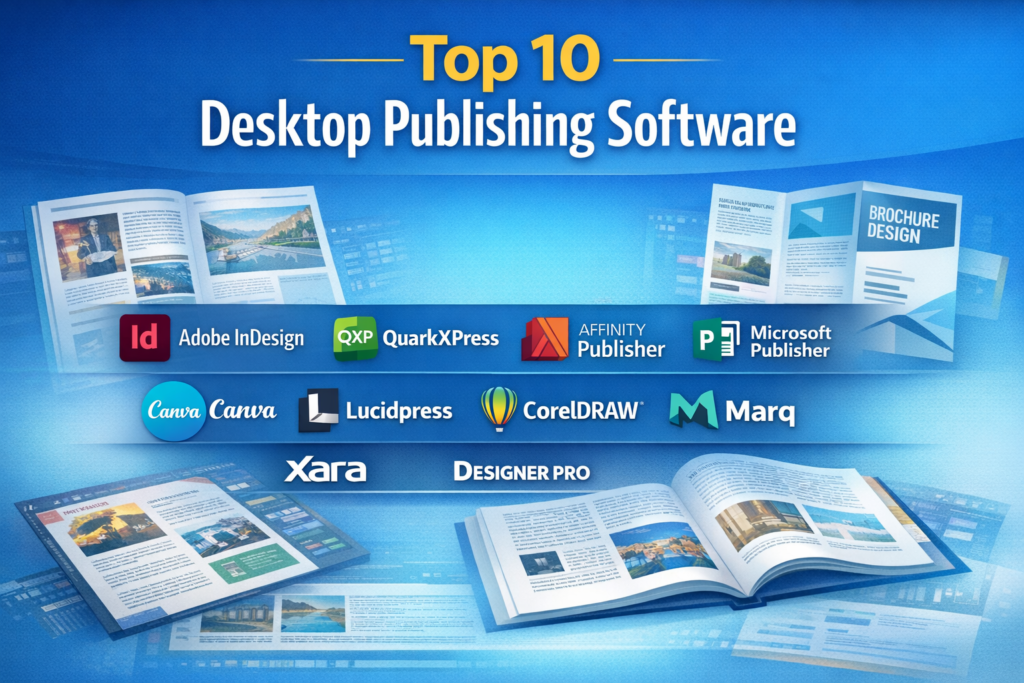
Top 10 Desktop Publishing Software Tools
1 — Adobe InDesign
Short description:
A professional-grade desktop publishing tool widely used in print and digital publishing. Designed for designers, publishers, and creative teams.
Key features:
- Advanced typography and paragraph styles
- Multi-page document and master page support
- Print-ready color management (CMYK, Pantone)
- Interactive PDF and digital publishing tools
- Tight integration with creative design ecosystems
- Automation via scripts and templates
Pros:
- Industry-standard for professional publishing
- Extremely precise layout and typography control
- Excellent output quality for print and digital
Cons:
- Subscription-based pricing
- Steeper learning curve for beginners
Security & compliance:
Supports enterprise SSO, encrypted cloud storage, GDPR alignment (varies by deployment).
Support & community:
Extensive documentation, tutorials, large global user community, enterprise support available.
2 — QuarkXPress
Short description:
A long-established desktop publishing solution focused on professional print and digital layouts.
Key features:
- High-performance layout engine
- Advanced typography and kerning
- Flexible print and digital publishing workflows
- Color management and prepress tools
- Automation and variable data publishing
Pros:
- One-time license option available
- Strong print publishing capabilities
- Fast performance on large documents
Cons:
- Smaller ecosystem than some competitors
- Interface feels dated to some users
Security & compliance:
Local document security, enterprise deployment options (varies).
Support & community:
Professional documentation, paid support, smaller but dedicated community.
3 — Affinity Publisher
Short description:
A modern, cost-effective desktop publishing tool aimed at designers and small teams.
Key features:
- Professional page layout tools
- Seamless integration with vector and photo tools
- Master pages and styles
- PDF/X export for print
- Non-destructive editing workflow
Pros:
- Affordable one-time purchase
- Clean and intuitive interface
- Strong performance
Cons:
- Limited enterprise collaboration features
- Smaller plugin ecosystem
Security & compliance:
Local file security, limited enterprise compliance features.
Support & community:
Good documentation, active user forums, responsive updates.
4 — Microsoft Publisher
Short description:
An entry-level desktop publishing tool focused on business and home users.
Key features:
- Pre-built templates for marketing materials
- Simple drag-and-drop layout tools
- Integration with office productivity suites
- Easy print and PDF export
- Familiar user interface
Pros:
- Very easy to learn
- Good for basic business publishing
- Affordable for casual users
Cons:
- Limited advanced typography
- Not suitable for professional print workflows
Security & compliance:
Standard enterprise security options when used within managed environments.
Support & community:
Broad documentation, business support options available.
5 — Scribus
Short description:
A free, open-source desktop publishing solution for print-focused users.
Key features:
- CMYK and ICC color management
- PDF/X output support
- Advanced text and image frames
- Scriptable workflows
- Cross-platform support
Pros:
- Completely free and open source
- Strong print capabilities
- Active developer community
Cons:
- Interface is less polished
- Steeper learning curve
Security & compliance:
N/A (local, open-source tool).
Support & community:
Community forums, documentation, volunteer-driven support.
6 — Canva
Short description:
A cloud-based design and publishing tool focused on speed and simplicity.
Key features:
- Drag-and-drop design editor
- Thousands of templates
- Brand kits and collaboration
- Print and digital export
- Cloud-based access
Pros:
- Extremely easy to use
- Excellent for non-designers
- Strong collaboration features
Cons:
- Limited advanced layout control
- Less suitable for complex print projects
Security & compliance:
SOC 2-aligned infrastructure, GDPR compliance (varies by plan).
Support & community:
Large user base, tutorials, community templates, paid support tiers.
7 — Lucidpress
Short description:
A brand-controlled desktop publishing platform for teams and enterprises.
Key features:
- Brand template locking
- Cloud-based collaboration
- Role-based access controls
- Print and digital publishing
- Version control
Pros:
- Excellent for brand consistency
- Strong collaboration tools
- Easy onboarding for teams
Cons:
- Less flexible for custom design
- Subscription pricing
Security & compliance:
SSO, access controls, GDPR alignment.
Support & community:
Enterprise support, onboarding resources, knowledge base.
8 — CorelDRAW
Short description:
A design suite that includes layout tools for publishing and print design.
Key features:
- Page layout and vector design
- Advanced typography tools
- Print and prepress features
- Cross-platform support
- Asset management
Pros:
- Versatile design capabilities
- One-time license option
- Strong print output quality
Cons:
- Interface can feel complex
- Less focused purely on publishing
Security & compliance:
Local security features, enterprise licensing options.
Support & community:
Good documentation, paid support, active professional community.
9 — Marq
Short description:
A cloud-first desktop publishing solution focused on brand-controlled documents.
Key features:
- Brand templates and permissions
- Cloud collaboration
- Print and digital export
- Automation for repetitive content
- Web-based access
Pros:
- Strong brand governance
- Easy collaboration
- Scalable for teams
Cons:
- Limited advanced layout controls
- Internet dependency
Security & compliance:
SSO, role-based access, GDPR alignment.
Support & community:
Documentation, customer support, enterprise onboarding.
10 — Xara Designer Pro
Short description:
An all-in-one design and desktop publishing tool for small businesses.
Key features:
- Page layout and vector tools
- Photo editing capabilities
- Web and print export
- Templates and styles
- Fast rendering engine
Pros:
- Good value for money
- Fast and lightweight
- Suitable for mixed-use design
Cons:
- Smaller ecosystem
- Limited enterprise features
Security & compliance:
N/A (desktop-focused).
Support & community:
Documentation, email support, small but helpful community.
Comparison Table
| Tool Name | Best For | Platform(s) Supported | Standout Feature | Rating |
|---|---|---|---|---|
| Adobe InDesign | Professional publishing | Windows, macOS | Industry-standard typography | N/A |
| QuarkXPress | Print professionals | Windows, macOS | High-performance layout engine | N/A |
| Affinity Publisher | Freelancers & SMBs | Windows, macOS, iPad | One-time license | N/A |
| Microsoft Publisher | Small businesses | Windows | Ease of use | N/A |
| Scribus | Budget-conscious users | Windows, macOS, Linux | Open-source print tools | N/A |
| Canva | Non-designers | Web, Desktop | Template-driven design | N/A |
| Lucidpress | Brand teams | Web | Brand control | N/A |
| CorelDRAW | Mixed design needs | Windows, macOS | Versatile design suite | N/A |
| Marq | Enterprises | Web | Brand governance | N/A |
| Xara Designer Pro | Small teams | Windows | Speed & simplicity | N/A |
Evaluation & Scoring of Desktop Publishing Software
| Criteria | Weight | Description |
|---|---|---|
| Core features | 25% | Layout, typography, export, print readiness |
| Ease of use | 15% | Learning curve and usability |
| Integrations & ecosystem | 15% | Compatibility and workflows |
| Security & compliance | 10% | Access control and data protection |
| Performance & reliability | 10% | Stability on large documents |
| Support & community | 10% | Documentation and help |
| Price / value | 15% | Cost vs delivered value |
Which Desktop Publishing Software Tool Is Right for You?
- Solo users: Affordable, easy-to-learn tools with strong templates work best.
- SMBs: Balance cost with professional output and collaboration.
- Mid-market: Look for scalability, brand control, and workflow efficiency.
- Enterprise: Prioritize security, compliance, and brand governance.
Budget-conscious users may prefer one-time licenses or open-source options, while premium users benefit from industry-standard tools. Consider whether you need deep layout control or faster, template-driven workflows. Integration with existing systems and compliance requirements should guide final decisions.
Frequently Asked Questions (FAQs)
- What is desktop publishing software used for?
It is used to design and produce professional print and digital documents. - Is desktop publishing different from graphic design software?
Yes, DTP focuses on layout and multi-page documents rather than individual graphics. - Do I need design skills to use DTP software?
Some tools are beginner-friendly, while others require professional skills. - Can these tools produce print-ready files?
Most professional DTP tools support print-ready PDF and color standards. - Are cloud-based tools secure?
Security varies by provider and plan, often including encryption and access controls. - Is free software reliable for publishing?
Free tools can be reliable but may require more expertise. - What industries use desktop publishing software most?
Publishing, marketing, education, media, and corporate communications. - Can DTP tools handle large documents?
High-end tools are optimized for complex, multi-page projects. - Do these tools support collaboration?
Cloud-based platforms generally offer stronger collaboration features. - Is there a single best tool for everyone?
No, the best tool depends on individual needs, budget, and workflow.
Conclusion
Desktop Publishing Software remains essential for producing high-quality print and digital content. The right tool empowers users to create visually consistent, professional layouts while supporting efficiency and scalability. When choosing a solution, focus on layout capabilities, ease of use, performance, and long-term value. There is no universal winner—only the best fit for your specific goals, team size, and publishing requirements.