Introduction
Screen Capture Tools are software applications designed to capture screenshots, record screen activity, and visually document what happens on a computer or mobile device. They range from simple screenshot utilities to advanced platforms that combine image capture, annotations, scrolling capture, video recording, and collaboration features.
In today’s digital-first environment, screen capture tools play a critical role in communication, documentation, training, marketing, and support. Instead of writing long explanations, teams can quickly show what’s happening on the screen—reducing misunderstandings and saving time. From developers reporting bugs to educators creating tutorials and marketers designing product demos, screen capture has become a daily productivity essential.
When choosing a screen capture tool, users should evaluate factors such as capture quality, ease of use, annotation capabilities, platform support, performance impact, security controls, integrations, and pricing. Not all tools are built for the same purpose—some excel at quick screenshots, while others are designed for professional-grade video capture and enterprise workflows.
Best for:
Screen Capture Tools are ideal for educators, developers, QA testers, designers, content creators, marketers, customer support teams, remote workers, freelancers, SMBs, and enterprises that rely on visual communication.
Not ideal for:
Users who only need very basic, occasional screenshots may find advanced tools excessive. In such cases, built-in OS utilities or lightweight alternatives may be sufficient.
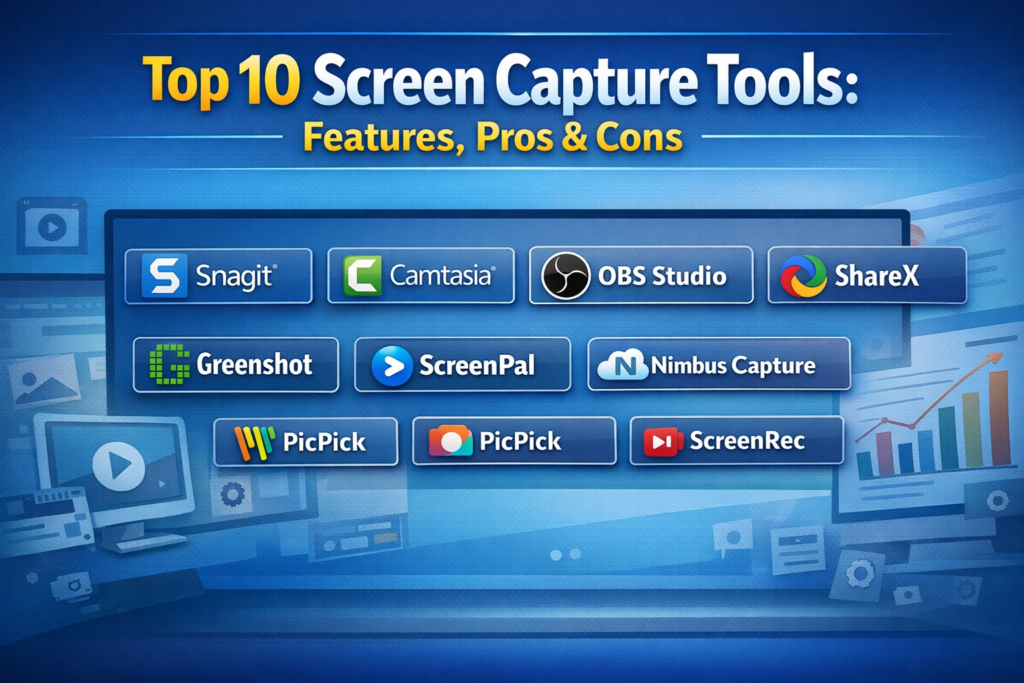
Top 10 Screen Capture Tools
#1 — Snagit
Short description:
A professional-grade screen capture and annotation tool designed for individuals and teams who need clear visual communication.
Key features:
- Image and video screen capture
- Scrolling capture for long pages
- Advanced annotation and markup tools
- OCR for text extraction from images
- Preset capture profiles
- GIF creation
- Cross-platform support
Pros:
- Extremely polished user experience
- Excellent annotation and editing tools
- Reliable performance for daily use
Cons:
- Paid license required
- Not focused on live streaming
Security & compliance:
Varies / N/A
Support & community:
Strong documentation, tutorials, and responsive customer support.
#2 — Camtasia
Short description:
An all-in-one screen recording and video editing solution built for training, tutorials, and professional video content.
Key features:
- High-quality screen and webcam recording
- Built-in video editor
- Timeline-based editing
- Animations and transitions
- Audio cleanup tools
- Captioning support
- Asset library
Pros:
- Excellent for educational content
- No need for third-party editors
- Professional video output
Cons:
- Heavier system usage
- Higher learning curve
Security & compliance:
Varies / N/A
Support & community:
Extensive learning resources, strong creator community.
#3 — OBS Studio
Short description:
A powerful open-source screen capture and recording platform popular with streamers and technical users.
Key features:
- Screen and window capture
- Scene and source management
- Audio mixing
- High-performance recording
- Plugin ecosystem
- Cross-platform support
- Custom output controls
Pros:
- Free and open source
- Extremely flexible
- High performance
Cons:
- Steep learning curve
- No built-in annotation
Security & compliance:
Varies / N/A
Support & community:
Large global community, active forums, and plugins.
#4 — ShareX
Short description:
A feature-rich open-source screen capture tool focused on automation and customization.
Key features:
- Screenshot and screen recording
- Workflow automation
- Scrolling capture
- Annotation tools
- OCR support
- Hotkey-driven actions
- Export customization
Pros:
- Completely free
- Extremely customizable
- Lightweight
Cons:
- Windows-only
- Interface can feel complex
Security & compliance:
Varies / N/A
Support & community:
Active open-source community and documentation.
#5 — Lightshot
Short description:
A simple and fast screenshot tool designed for quick captures and instant sharing.
Key features:
- Area-based screenshots
- Basic annotations
- Keyboard shortcuts
- Fast sharing options
- Lightweight installation
- Cross-platform availability
Pros:
- Very easy to use
- Minimal system impact
- Ideal for quick tasks
Cons:
- Limited advanced features
- Not suitable for video
Security & compliance:
Varies / N/A
Support & community:
Basic documentation and limited support.
#6 — Greenshot
Short description:
An efficient screenshot utility focused on productivity and simple image editing.
Key features:
- Full-screen and region capture
- Scrolling capture
- Built-in image editor
- Export to multiple formats
- Plugin support
- Shortcut customization
Pros:
- Lightweight and fast
- Easy to learn
- Free option available
Cons:
- Limited video support
- Basic UI design
Security & compliance:
Varies / N/A
Support & community:
Good community documentation and forums.
#7 — ScreenPal
Short description:
A user-friendly screen capture and recording tool popular among educators and trainers.
Key features:
- Screen and webcam recording
- Annotation during capture
- Cloud storage options
- Captioning support
- Basic editing tools
- Quiz integration
Pros:
- Education-focused features
- Easy onboarding
- Affordable plans
Cons:
- Limited advanced editing
- Performance varies on older systems
Security & compliance:
Varies / N/A
Support & community:
Helpful knowledge base and educator-focused support.
#8 — Nimbus Capture
Short description:
A versatile screen capture and annotation tool designed for team collaboration.
Key features:
- Screenshot and video capture
- Annotation tools
- Cloud-based sharing
- Team workspaces
- Browser extension support
- Task and comment tracking
Pros:
- Collaboration-friendly
- Strong annotation tools
- Browser integration
Cons:
- Some features require paid plans
- UI can feel crowded
Security & compliance:
Varies / N/A
Support & community:
Documentation, onboarding guides, and team support.
#9 — PicPick
Short description:
A design-oriented screen capture tool tailored for designers and content creators.
Key features:
- Screenshot and scrolling capture
- Color picker and palette tools
- Ruler and protractor
- Image editor
- Multi-format export
- Custom shortcuts
Pros:
- Excellent for designers
- All-in-one utility set
- Lightweight
Cons:
- Limited collaboration features
- Video capture is basic
Security & compliance:
Varies / N/A
Support & community:
Clear documentation and standard support.
#10 — ScreenRec
Short description:
A simple screen recording and capture tool with built-in sharing features.
Key features:
- Screen and audio recording
- Screenshot capture
- Instant sharing links
- Annotation tools
- Lightweight client
- Cross-platform support
Pros:
- Very easy to use
- Quick sharing workflow
- Free tier available
Cons:
- Limited advanced editing
- Fewer customization options
Security & compliance:
Varies / N/A
Support & community:
Basic documentation and email support.
Comparison Table
| Tool Name | Best For | Platform(s) Supported | Standout Feature | Rating |
|---|---|---|---|---|
| Snagit | Professionals & teams | Windows, macOS | Advanced annotations | N/A |
| Camtasia | Training & tutorials | Windows, macOS | Built-in video editor | N/A |
| OBS Studio | Power users & streamers | Windows, macOS, Linux | Scene control | N/A |
| ShareX | Automation-focused users | Windows | Workflow automation | N/A |
| Lightshot | Quick screenshots | Windows, macOS | Speed & simplicity | N/A |
| Greenshot | Productivity | Windows, macOS | Lightweight editor | N/A |
| ScreenPal | Educators | Windows, macOS | Education tools | N/A |
| Nimbus Capture | Collaboration | Windows, macOS, Browser | Team sharing | N/A |
| PicPick | Designers | Windows | Design utilities | N/A |
| ScreenRec | Fast sharing | Windows, macOS, Linux | Instant sharing | N/A |
Evaluation & Scoring of Screen Capture Tools
| Tool | Core Features (25%) | Ease of Use (15%) | Integrations (15%) | Security (10%) | Performance (10%) | Support (10%) | Price/Value (15%) | Total Score |
|---|---|---|---|---|---|---|---|---|
| Snagit | 23 | 14 | 12 | 6 | 9 | 9 | 13 | 86 |
| Camtasia | 24 | 12 | 11 | 6 | 9 | 9 | 11 | 82 |
| OBS Studio | 22 | 8 | 13 | 6 | 10 | 8 | 15 | 82 |
| ShareX | 21 | 9 | 12 | 6 | 9 | 8 | 15 | 80 |
| Lightshot | 15 | 14 | 8 | 5 | 8 | 6 | 14 | 70 |
Which Screen Capture Tool Is Right for You?
- Solo users: Lightweight tools like Lightshot or ScreenRec
- SMBs: Snagit or Nimbus Capture
- Mid-market: Camtasia or ScreenPal
- Enterprise: Snagit with standardized workflows
- Budget-conscious: OBS Studio or ShareX
- Premium needs: Camtasia or Snagit
- Ease of use: Lightshot, ScreenRec
- Feature depth: OBS Studio, Camtasia
- Security-focused: Tools with controlled sharing and offline storage
Frequently Asked Questions (FAQs)
1. Are screen capture tools different from screen recording tools?
Yes. Screen capture usually refers to images, while screen recording focuses on video.
2. Do these tools affect system performance?
Lightweight tools have minimal impact, while video-focused tools may use more resources.
3. Are free tools safe to use?
Reputable open-source tools are generally safe when downloaded from official sources.
4. Can screen captures include audio?
Only screen recording tools support audio capture.
5. Are these tools suitable for remote teams?
Yes, especially tools with sharing and collaboration features.
6. Do screen capture tools support annotations?
Most professional tools include annotation capabilities.
7. Is training required to use advanced tools?
Some tools like OBS Studio require a learning period.
8. Can these tools be used for compliance documentation?
Yes, screenshots and recordings are often used for audits and SOPs.
9. Are mobile devices supported?
Most listed tools focus on desktop platforms.
10. What’s the most common mistake buyers make?
Choosing overly complex tools for simple needs.
Conclusion
Screen Capture Tools are essential for clear communication, productivity, and documentation in modern digital workflows. The best tool depends on who you are, what you capture, and how you share it. Lightweight tools excel at speed, while advanced platforms deliver professional-quality output and collaboration.
Rather than looking for a single “best” option, focus on matching the tool to your real-world needs, budget, and workflow. When chosen wisely, the right screen capture tool can save time, reduce errors, and significantly improve how teams communicate.